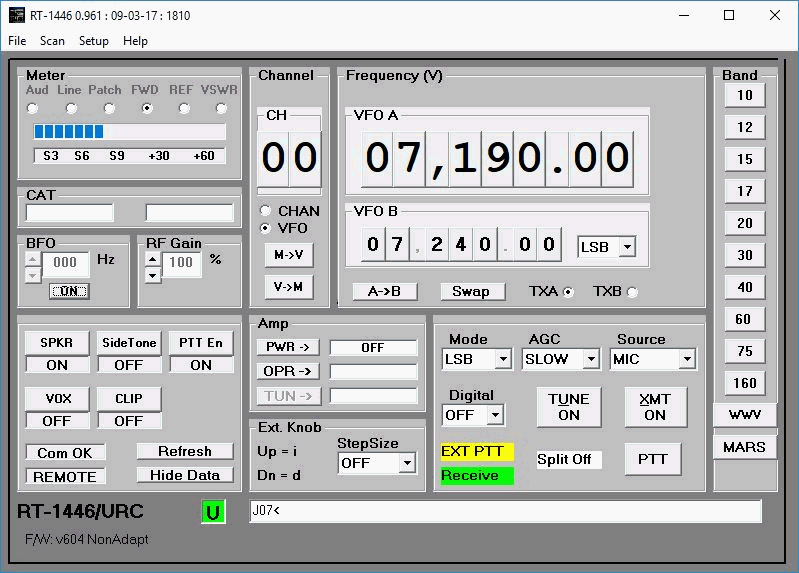
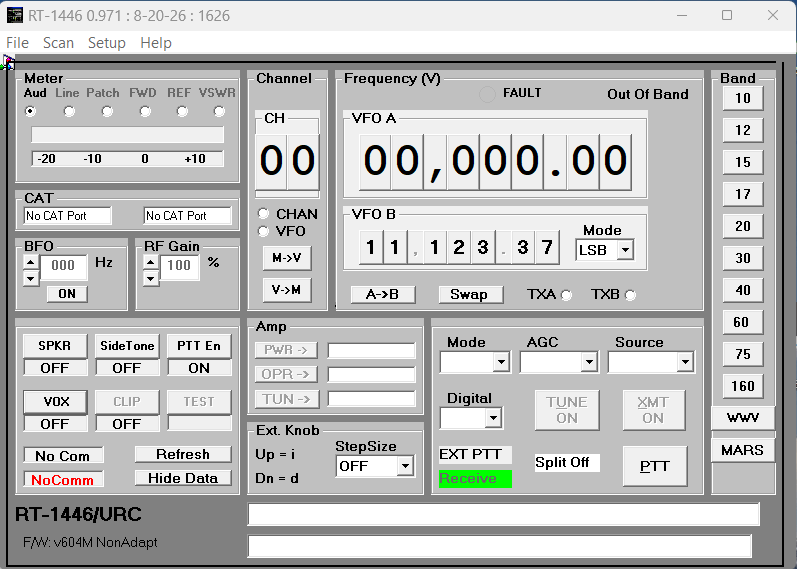
The latest version of the RT1446 program has many new features and improvements.
Can display the analog meter data from the radio.
Adapts to different firmware revisions and baudrate modes.
Settings files for RS232 and Audio setup can be generated from a menu.
Controls for Amplifier are included.
Memory Channels of the RT-1446 can be set and retrieved.
Can be set for VFO or Memory mode.
RT-1446 Test Can be initiated and result displayed.
Development History. (Latest to Earliest)
8-27-26
Releasd 0.971. Changed text box for TEST button to display module number and fault number which caused TEST to stop, i.e., A1A5-3, the same number displayed on the RT1446. Added FAULT LED above VFO A to display Red when TEST fails......
7-5-19
Release 0.962c. Fixed problem with Sidetone. Radio turns off Sidetone on the first selection of AME mode after powering up. Program now restores initial Sidetone setting when changing from AME to other modes. Fixed problem with PTT Enable button to restore user's setting when exiting Out-of-band condition. Fixed interlocking between Swap, Tune On, Xmt On, and PTT buttons.
8-24-18
Release 0.962b. Fixed freeze-up (Program not responding...) in Scan Bands. Allow changing scan limits while scanning.
8-8-18
Release 0.962a. Fixed logic that caused XMT, TUNE, PTT, and PTT En buttons to flicker. Noticed that if an RF350 Antenna Coupler is used during Split operation, the radio may enter a tune cycle each time PTT is clicked. To avoid this:
Enter the transmit frequency in VFO A.
Enter the receive frequency in VFO B.
Select TX A.
Click PTT. The Antenna Coupler should tune on the transmit frequency.
Click Swap and select TX B.
Click PTT. The Antenna Coupler should not tune.
11-21-17
Release 0.962. Fixed problems that caused radio to crash in v0.961. Allows Split only when both frequencies are in USB, LSB, or AME. "Out of Band" limit now depends on the transmit VFO to allow transmitting so VFO A may be used to listen out of band. Note: If you want to transmit outside the Amateur Radio bands, you may add a file named "Permissions.txt" to the "RT1446 Files" folder. Added "Test" button to initiate radio self-test. Label under Test button will show "FAULT" if Self-Test fails or if fault occurs during operation. Program caption date: 11-21-17 : 1600.
10-01-17
Release 0.961 is being withdrawn. It was discovered that PTT command did not work correctly in Split mode when VFO A Mode is different from VFO B Mode. Also discovered that radio needs some time after changing frequency before start of transmit. New release 0.961a will partially fix the problem but Split Modes has been abandoned for now.
09-04-17
Release 0.961. Replaced MEM/VFO button with option buttons CHAN and VFO. Replaced Split button with option buttons TXA and TXB. Reduced delay time to start transmit in Split. Changed tuning rate of VFO A. Program caption date: 09-04-17 : 1100. Updated Help file. NOTE: Microsoft updates to Windows 10 may remove WinHelp which supports 32 bit help files. I had to re-run the script described above to re-install WinHelp
05-01-17
Release 0.960. Activated VFO B Mode for Split and Swap. Swap VFO A and Mode with VFO B and Mode. Save VFOB Mode, SplitOn/SplitOff, Ext Knob Step Size at exit and restore at startup. Program caption date: 04-30-17 : 2134.
05-01-17
Fix to 0.950f. Fixes error caused by selecting CW mode. Last modification to v0.950. Program caption date: 5-01-17 : 1453
03-30-17
Release 0.950f. Minor fix to avoid runtime error caused by older ini file format. Program caption date: 3-30-17 : 1208
03-29-17
Release 0.950e. Activated External Knob controls which were invisible. Added "OFF" value to Step Size to disable knob input. Added save and restore of VFO B value in ini file RT1446ini.txt. Delete this file in Users\Public\RT1446 Files folder before first launch of program. Tested program on Windows 7 64Bit.
Fixed bugs in 01-22-17 release:
Mode, AGC, Audio Source, and Digital drop-down menus would not select new values.
01-22-17
Release 0.950d. Added keyboard input to change VFO A. "i" increases, "d" decreases. Might work with "Griffin Knob" but not tested.
Fixed bugs in 12-17-16 release:
Band Select looked for text files in Program Files folder.
Frequency change fails for repeated short mouse clicks.
Frequency for 60M channel 3 was wrong causing Out Of Band
New release should show date: 1-22-17:2231
12-18-16
OOPS! Previous release had some problems with PTT button going into endless transmit if RS232 DSR not set up for external PTT. Sorry! New release should show date: 12-17-16:2319
12-13-16
Version 0.950c dated 12-10-6 released. This revision eliminates several message boxes including "Sync Timeout" and "Mode Error". Program recovers by getting status of radio and re-establishing Sync. Eliminated confusion caused when radio initiates transmit to tune antenna or amplifier.
12-7-16
Version 0.950b dated 12-6-16 released. This revision provides for disabling the DSR External PTT. Program will recall its screen position from the last use.
12-1-16
Help for Windows Help. Microsoft Visual Basic programs are compiled to 16 bit code. When they are run on 32bit or 64bit Windows systems, the compiled help files are not compatible. Microsoft provided a program Winhlp32.exe for Windows 7 to connect the 16bit help files to programs .Unfortunately, Winhlp32 was not updated to work with Windows 8 and Windows 10. It's really the same program but the installer won't work on Windows 8 or 10. I found a program on the web which allows changing the installer so it works with all Windows versions. I have wrapped the necessary files up in a ZIP file for downloading.
Download Komeil-cab.zip . Follow the instructions in the included PDF file Making Windows 32 bit Help files work in Windows 10.pdf .
11-29-16
Version 0.950a dated 11-27-16 released. Added Memory Channel selection and programming. Added second VFO dial for split and swap operation.
11-3-16
Version 0.931b dated 10-30-16 is available. Fixed problems with exit when no com port was available. Added method to interface external Push to Talk via Com Port.
9-29-15
Version 0.931a dated 9-29-15 is available. Fixed error in previous version which caused program to enter endless loop when response from radio was missing linefeed. Usually happened during transmit.7-3-15
Information about connecting the Logging Program Com Port to the RT1446 Program CAT Port is detailed in the file:
6-29-15
Version 0.931 dated 5-29-15 is available. Fixed to save current audio source when switching to digital mode and restore when returning to phone.
5-24-15
Version 0.931a is available. Still somewhat Beta. This version adds a dropdown menu to choose Digital Modes OFF, PSK, FSK, RTTY. Audio Setup Menu includes choice of audio channels to use for digital signal. Choosing a digital mode causes the Audio Source to cycle to the desired source: MIC, Audio2, or Patch. The CAT Mode data sent to the logger will indicate SSB, PSK, FSK, or RTTY.
5-20-15
Some notes on CAT ports and Help files... The ports for CAT should be established in Device Manager before the program is started. USB RS232 ports need to be connected first and device drivers loaded. Virtual ports such as VSPE can be set up by running the virtual port manager at Windows Startup before the logging program and RT1446 are started. If the programs are started by shortcuts in the Startup Folder, the VSPE shortcut should be run first. This can be accomplished by making the name of the shortcut start with a "0" since Windows sorts the files alphabetically.
RT1446.Hlp is compiled as a 32 Bit help file. Windows 7, 64Bit, will need an update installed to read the help file. The Windows popup when you click RT1446 Help will give a link to the download page.
5-15-2015
Meter Functions directly selectable
RF Gain Control simplified
BFO Control simplified
CAT emulation to provide Frequency and Mode to logging programs. Set your logging program to use Kenwood or TS-450 protocol. Use two Com ports to connect the programs. Set the ports for compatible parameters. At NB6GC, we use virtual COM ports provided by Virtual Serial Port Emulator, (VSPE), from Eterlogic.com .
Help File added and updated
Version 0.962
Version 0.971
Button Descriptions (For Latest Version)
Upper Left Buttons:
Meter - Click the option buttons to select the meter input.
RF Gain - Click the Up or Down arrows to set RF Gain from 0% to 100%.
BFO - Click the Up or Down arrows to set BFO offset. Click ON to turn BFO ON or OFF.
Upper Middle (Channel) Buttons:
CH - Select the RT1446 Channel. Click on a digit to increment (left button) or decrement (right button). If CHAN option is selected, frequency and mode are requested from the RT1446 and moved to VFO A and Mode.
CHAN, VFO Option - Select either Channel or VFO A. VFO A cannot be adjusted when in CHAN.
M->V - Memory to VFO. When in VFO option, move frequency and mode for indicated channel from RT1446 memory to VFO A
V->M - VFO to Memory. When in VFO option, move VFO A frequency and mode to indicated channel memory of RT1446.
Upper Right Buttons:
VFO A - Click on any digit to increment (Left button) or decrement (Right button) frequency. Increment or Decrement will continue while mouse button is held down. VFO A is used for the Receive frequency.
VFO B - Like VFO A. Can hold a second frequency to use with Split or Swap. Mode for VFO B can be selected and will be swapped with VFO A Mode. For (TXB), the mode must be same as VFO A
A->B - Copies the VFO A frequency and mode to VFO B frequency and mode .Used for saving a frequency and for setting up for Split.
Swap - Swaps the frequencies and modes.
TXA, TXB - Select the VFO and Mode used for Transmit. TXB is split mode.
Lower Left Buttons:
SPKR - Click to toggle speaker Off or On.
Sidetone - Click to toggle transmit audio sidetone in speaker on or off. Label changes from On to Off. Sidetone is set On by the radio for CW Mode.
VOX - Click to select VOX operation.[OFF, Voice, Data]
Clipping - Click to toggle Clipping.[On, Off]
PTT En - Click to toggle enable of Local Push to Talk. PTT toggles Off in CW mode.
TEST - Initiate RT1446 Test function. Text box below button indicates: "Testing" while Test is running, <fault code> if test fails, "Passed" if Test completes.
Get Stats - Click to refresh all statuses of the radio and re-establish a link.
View Data/Hide Data - Click to toggle display of data received from the RT-1446.
Lower Middle Buttons:
Amp:
PWR - Click to Turn the RF352 Amplifier ON or OFF.
OPR - Click to Place the RF352 Amplifier in Operate or Standby.
TUN - Click to Initiate the RF352 AutoTuning. (Really isn't necessary. RT1446 will initiate tuning on first XMIT or PTT.)
External Knob:
Step Size: Select Frequency step for increment/decrement when "i" or "d" is sent from keyboard or External Knob.
Lower Right Buttons:
Mode - Click to select Mode used with VFO A: USB, LSB, AME, CW. (AFSK is not supported.)
AGC - Click to select AGC speed: SLOW, MEDIUM, FAST, OFF.
Audio Source - Click to select the RT1446 Audio Source: MIC, AUDIO2, PATCH, REMOTE, OFF/CW.
TUNE ON - Click to set the RT-1446 to AME and begin transmitting. Button label will change to TUNE OFF. Click again to stop transmitting and return to previous Mode. Useful to provide reduced power for tuning antennas.
XMT ON - Click to begin transmitting in the selected mode. Button label will change to XMT OFF. Click again to stop transmitting.
Digital - Click the dropdown button to choose a digital mode. Use the Audio Setup menu to choose the audio source channel for digital. OFF reverts to previous SSB audio channel.
EXT PTT- A label to show the condition of an external push-to-talk switch connected to the RS232 UART DTR input. Yellow if disabled, Red if pressed, Green if released.
Receive/Transmit - A label to indicate the radio status.
Split On/Split Off - A label to indicate when VFO B is used for Transmit.
PTT - Select and hold down left mouse button to Transmit, release to Receive.
Right Buttons
Band - Click a button to open a list of stored frequencies to select from. Each stored frequency includes a Mode and Name. Click on the option button to send it to the radio. Exiting the list leaves the frequency and mode set to the new frequency/mode. Frequency values are stored in text files named MxxxList.txt.
Downloads
Packages install Visual Basic support files (if needed) and text files for settings, bands, and scanning. Scroll down for most recent package. Older versions will disappear in the future.
|
|
|
|
|
|
4-30-17 v0960
|
4-30-17 v0960 date: 04-30-17 : 2134
Activated VFOB Mode for Swap and Split
Save/Restore VFOB, VFOB Mode, Spliton, and Ext. Knob StepSize.
|
|
|
|
|
|
(Replaces the existing Exe and Help files without installing new drivers.)
Download this to try new features.
Latest revision is 0.960:4-30-17
|
|
4-30-17 : 2134
|
|
|
|
|
|
|
|
v0962c date: 7-4-19 : 2307
Replaces v0962b; Fixes Sidetone problem.
|
|
|
|
|
|
(Replaces the existing Exe and Help files without installing new drivers.)
Download this to try new features.
Latest revision is 0.962c:7-4-19
|
|
v0962c date: 7-4-19 : 2307
Replaces v0962b; Fixes Sidetone problem.
|
|
|
|
|
|
|
8-20-26 v0971
|
v0971 date: 8-20-26 : 1626
Adds display of TEST results.
|
|
|
|
|
|
(Replaces the existing Exe and Help files without installing new drivers.)
Download this to try new features.
Latest revision is 0.971 : 8-20-26
|
8-20-26 v0971
|
v0971 date: 8-20-26 : 1626
Adds display of TEST results.
|
RT1446Probe_V040 (8-18-11)
This is a program to investigate the responses of the RT1446 to commands. It can be used to test for proper or undocumented responses. Download RT1446Probe_v040.zip . The program doesn't need to be installed if you have the required Visual Basic support files. Just extract the files to a folder. Visual Basic source files are included.